How do I find myself in hundreds of wedding photos?
Hundreds of wedding photos, and you're in some of them. In Spotted, you tap your own face once and the gallery shows only your photos.
You're at the reception, or back home a week later, and somewhere in a shared album there are hundreds of photos. You are in some unknown number of them. Nobody wants to scroll through all of them on a phone, squinting at thumbnails, hoping to spot themselves in the background of someone else's photo. In Spotted, you tap your own face once, in a row of guest faces at the top of the gallery, and the gallery narrows down to only the photos you're in.
Here's what that looks like, step by step, on the demo gallery Spotted uses to show the product — a wedding for "Sarah & Tom" with illustrated guests, not real people.
The gallery you land on
The gallery opens on "Whole day," with every photo from the wedding grouped into sections by part of the day — Getting ready, Ceremony, Reception, and so on. In the demo there are 149 photos total. Across the top sits a row of circular guest faces: Sarah, Tom, Leo, Linda, Grandma, and more. That row is what you tap.
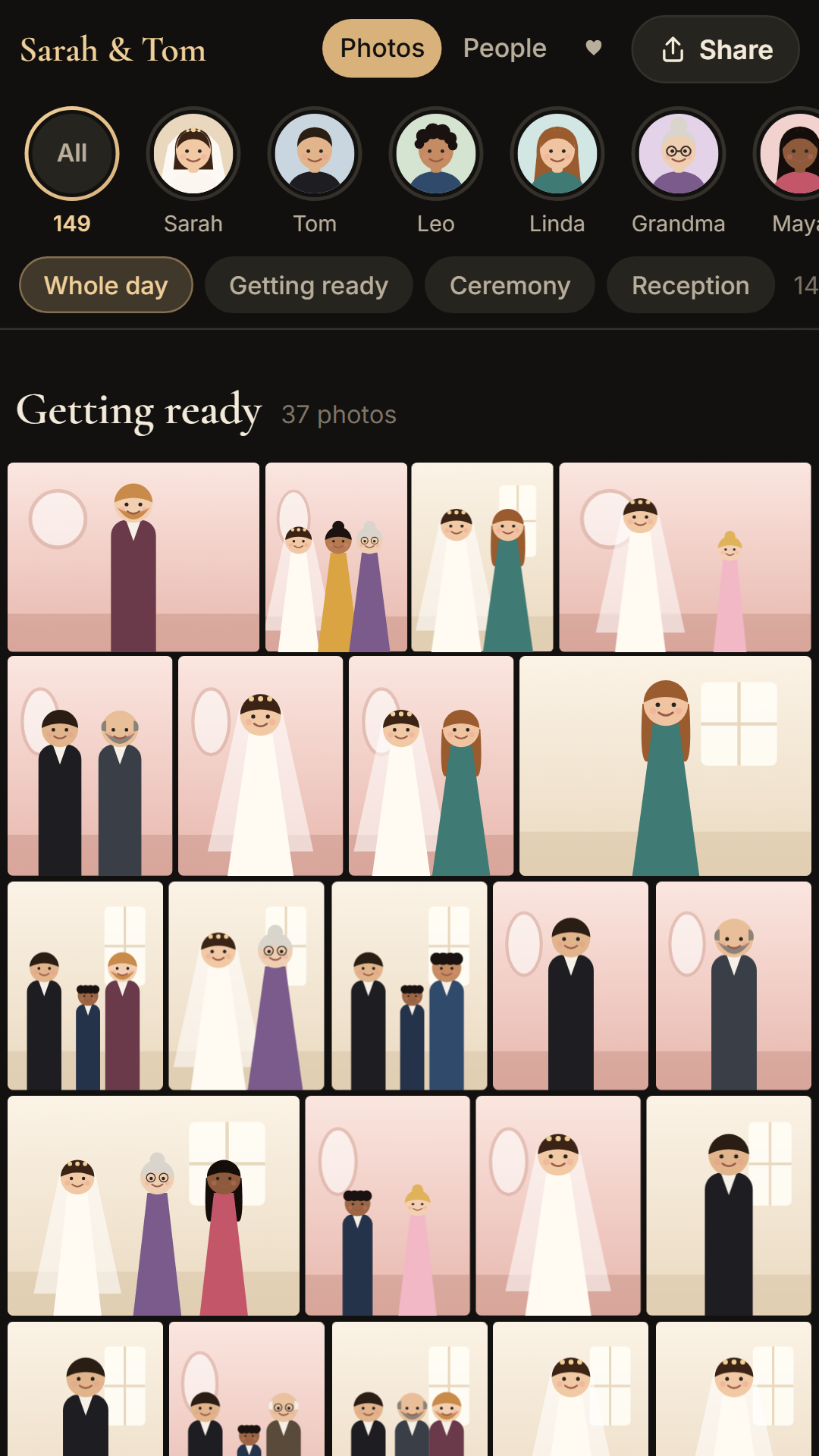
Above the grid are filter buttons for "Getting ready," "Ceremony," and "Reception" — useful if you only care about one part of the day rather than the whole thing. A heart icon lets you favorite photos as you go, and a Share button sits next to it for whoever built the gallery.
Tapping your own face
The row of faces along the top is the whole trick. Each circle is one guest — Spotted groups faces across the uploaded photos automatically, one circle per person, so you don't need to type your name into a search box or ask the couple to find you. You scan the row until you spot yourself, and tap.
Only the photos you're in
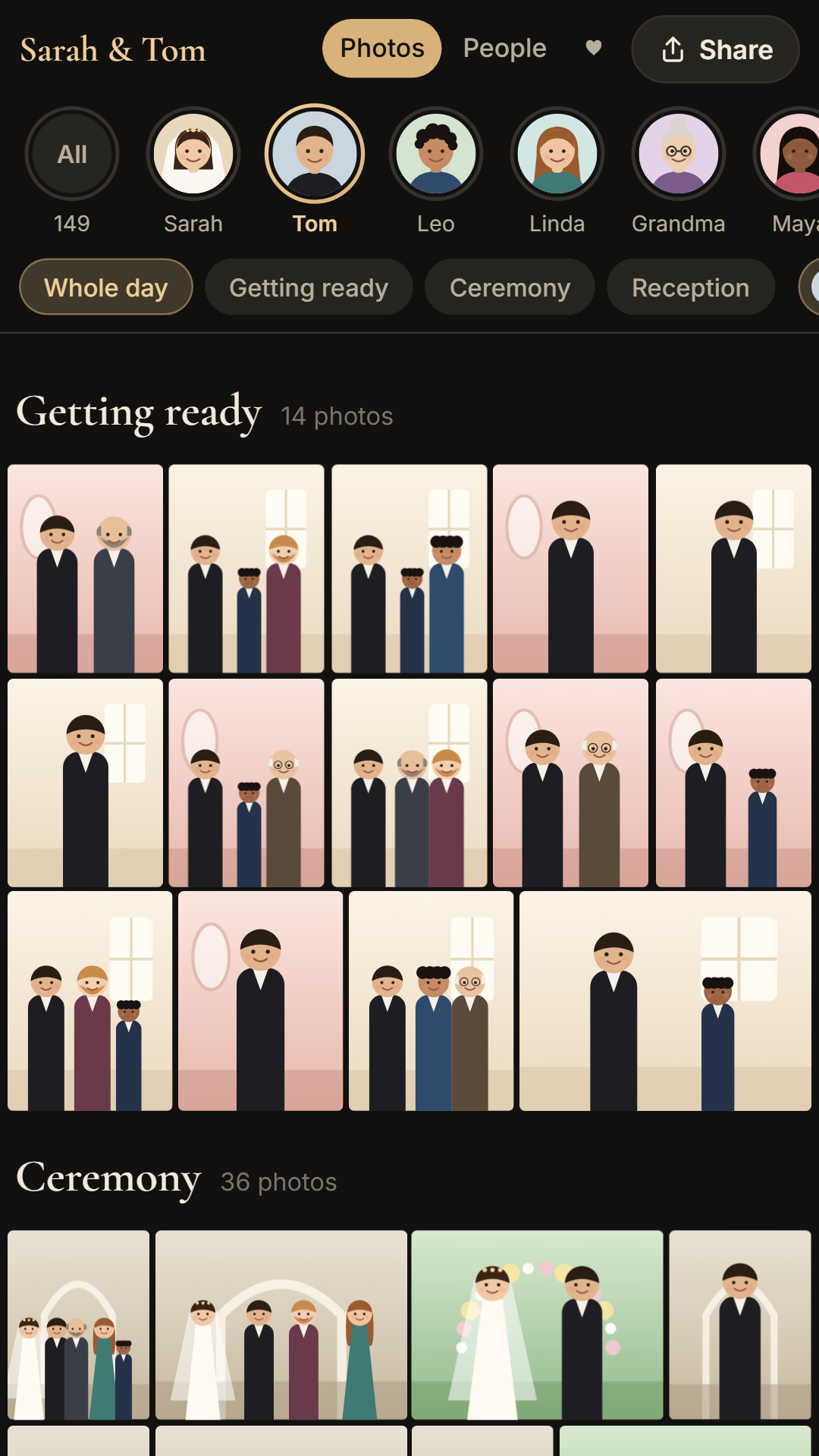
The gallery view changes immediately to show just that person's photos. In the demo, selecting Tom cuts "Getting ready" down from 37 photos to 14, and the same filtering applies across every part of the day — Ceremony, Reception, all of it. The part-of-day filters are still there, so you can narrow further, say, to just the reception shots of yourself.
Opening one photo
From that filtered grid, you tap any thumbnail to open it. The same filtered view is what you'd land on if you came in through a personal link — the kind the couple can send each guest individually, so they go straight to their own photos instead of the full gallery.
The photo, full screen, with who's in it
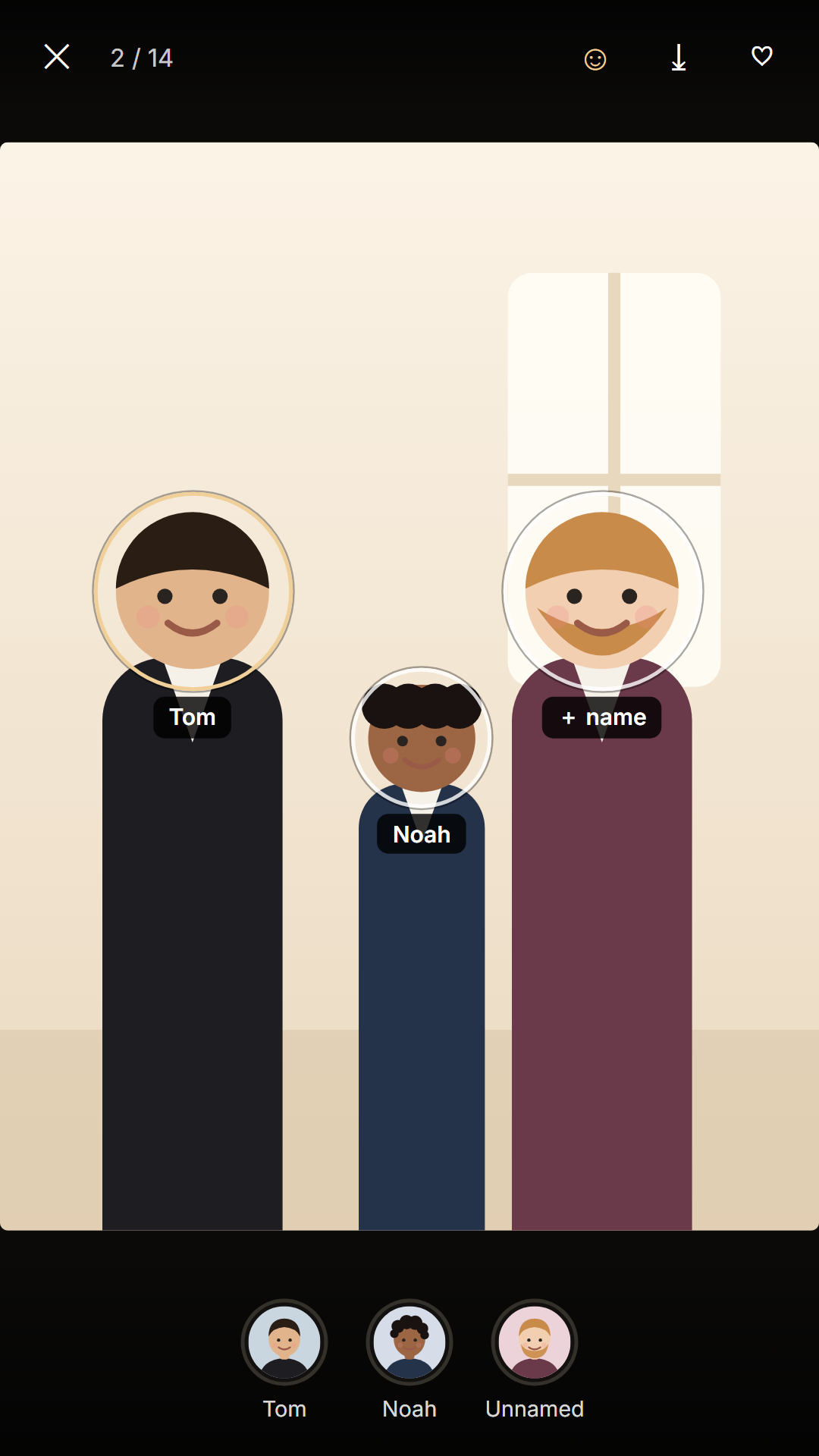
Opened full screen, the photo shows a light circle drawn around each face, with a name underneath. In the example, Tom's face has a gold ring around it (he's the guest currently selected) and is labeled "Tom," a second face is labeled "Noah," and a third is tagged "+ name" — meaning that face hasn't been matched to a name yet. Along the top sit a smiley, a download arrow and a heart; along the bottom, everyone in the photo is listed: Tom, Noah, and one guest who hasn't been named yet.
The whole sequence, tap to tap, takes seconds:
What to know before you count on it
The demo above uses illustrated guests built to show the interface, not a real couple's wedding, so treat the photo counts and faces as a mock-up, not a benchmark. A few things worth knowing about how the real product works:
Guests open the gallery in a browser — there's no app to install. Spotted does ask for a free, simple account to get in, so it's not fully anonymous access. As the "+ name" tag in the screenshot shows, face grouping isn't guaranteed to catch and label every single face in every photo; whoever built the gallery can fill in the gaps.
Building the gallery and looking through every guest's album is free, so a couple can upload everything and see how the face grouping turned out before committing to anything. Sharing it with guests — the link for everyone, the personal link per guest, and downloads — is a one-time payment per wedding, and the gallery stays live for 60 days once shared. Photos come in by uploading a folder directly, or by pasting a link from Dropbox, Google Drive, Google Photos, WeTransfer, or a .zip file, so you don't need to already have everything organized in one place.
If you're the one building the gallery
If you're a couple sitting on a folder of wedding photos, the useful move is to upload them and look at the "People" tab first — that's where you'd see every guest Spotted grouped, before deciding whether to share it. It costs nothing to get to that point. Spotted is built around that one tap: a guest finds their own face, and the hundreds of photos become the dozen or two that are actually about them.
Tested on 2026.11.04-6375aa8, November 3, 2026.
Questions
Do I need to install an app to see my photos?
No. Spotted's web app opens in your phone's browser. You do need a free, simple account to get in, but there's nothing to download.
How does it know which photos I'm in?
Faces are grouped automatically across the uploaded photos, one circle per guest. Tapping your circle filters the gallery to just your photos. Some faces can come up untagged, shown as "+ name" in the full-screen view, until the couple labels them.
Can I download the photos I'm in?
Yes, once the gallery has been shared, guests can download the photos they appear in.
How long is the gallery online for?
A shared gallery stays online for 60 days.
Can I just look at photos from one part of the day, like the ceremony?
Yes. There are filters for getting ready, ceremony, and reception, and they work together with the guest-face filter.